

This guide shows you how to get an Instagram API access token for posting, using the token generator in Meta's app dashboard.
It's for posting to your own Instagram account and uses Meta's current setup for new apps, the Instagram API with Unified Login. It works with an Instagram professional account and doesn't need a Facebook Page.
If another tutorial tells you to open API setup with Instagram login, you won't find it, because Meta no longer offers it to newer apps.
Known issue: As of November 2026, adding your Instagram account to a business portfolio (Step 2) can fail: the login ends on a blank page, and reloading it shows an "Invalid code" error.
We hit it ourselves, and Meta hasn't documented the cause. If it happens to you, see the workaround at the end.
Before you start
You'll need:
- An Instagram Business or Creator account set to public. Meta can only generate tokens for public professional accounts.
- A Meta developer account.
- A business portfolio. Meta requires one for this setup. It's free, you can create it in Step 2, and you don't need to verify it.
Step 1: Create a Meta app
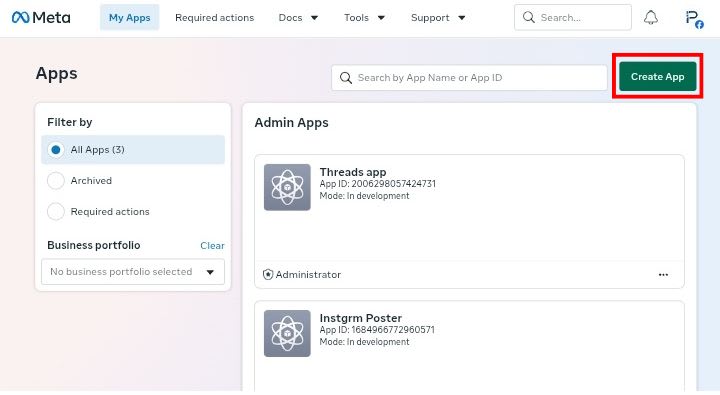
- Open the Meta App Dashboard and click Create App.
- Enter your app name and contact email, then click Next.
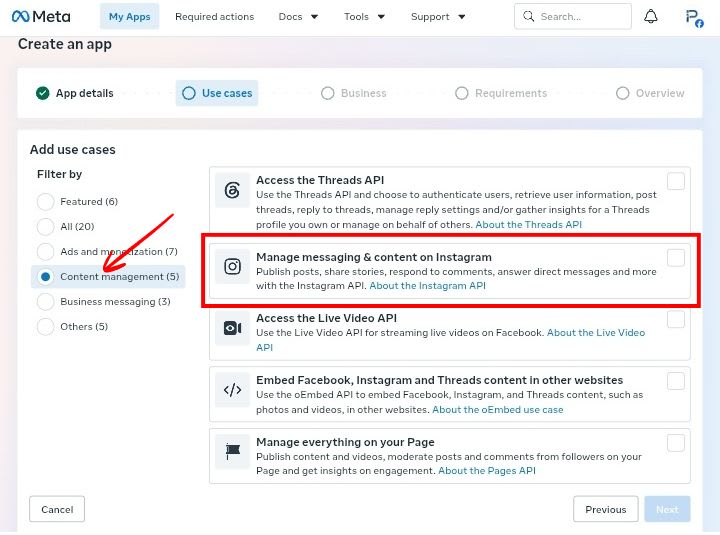
- On the Use cases step, select Content management under Filter by, tick Manage messaging & content on Instagram, and click Next.
- On the Business step, choose your business portfolio if you have one. If not, select I don't want to connect a business portfolio yet and create one in Step 2.
- Click Next through Requirements, check the Overview, and click Create app.
- In your new app's dashboard, go to Use cases and click Customize next to the Instagram use case.
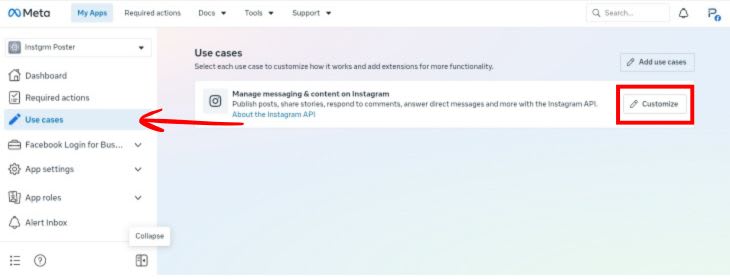
- In the left menu, open API setup with Unified login.
Step 2: Connect a business portfolio and add your Instagram account
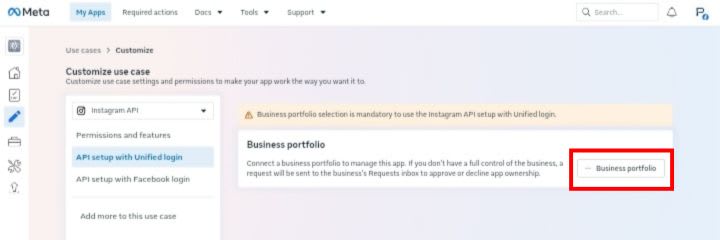
If the page shows a notice that a business portfolio is mandatory, create one. If you chose a portfolio in Step 1, skip to adding your Instagram account.
- Click Business portfolio, then Create new account in the pop-up.
- Enter a portfolio name, your first and last name, and a business email, then click Create portfolio.
- Refresh the page if the notice doesn't clear.
The name is public and can't contain special characters. In our test, Meta rejected "Automation" with a Business Name Not Allowed error, while a brand name worked.
Next, add your Instagram account to the same portfolio. Step 4 asks you to pick it from the portfolio, and the list is empty until you do.
- Open Meta Business Suite (business.facebook.com) and select your business portfolio in the top-left switcher, not a Facebook Page listed under Other assets.
- Click Settings at the bottom left and choose Business settings. If the portfolio says "No profiles available", click Visit settings instead.
- Under Accounts, select Instagram accounts, then click + Add.
- Click Add Instagram account in the pop-up and log in to the account.
A personal account is switched to professional when you add it. If the profile has a connected ad account, both move into the portfolio, and the ad account can't be removed.
An Instagram account can belong to only one portfolio, so remove it from any other first, and you need full control of the portfolio to add it.
Step 3: Create a configuration
A configuration is the list of permissions and assets your app asks for. For posting, you need instagram_content_publish.
- In the app dashboard, under 1. Configure your app, click Create new configuration.
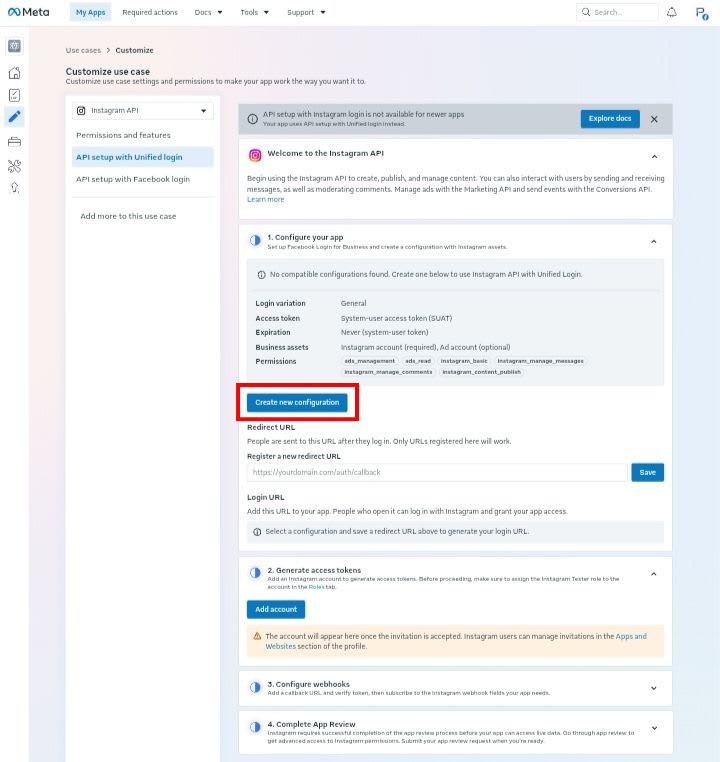
- In the Confirm login configuration details pop-up, keep the defaults. They already include
instagram_content_publishand a system-user token that never expires. - Click Create from template.
The new configuration shows an Instagram Login Compatible label and a Selected badge. Click Preview to see its token type, expiration and permissions. If it isn't selected, click Use this configuration.
Standard Access is enough for your own account, so you don't need App Review. Ignore the redirect URL and login URL fields on this page, because you don't need them here.
Step 4: Add your Instagram account and generate a token
In development mode, you get a token for your own account by giving it the Instagram Tester role.
- Under 2. Generate access tokens, click Add account, then Continue.
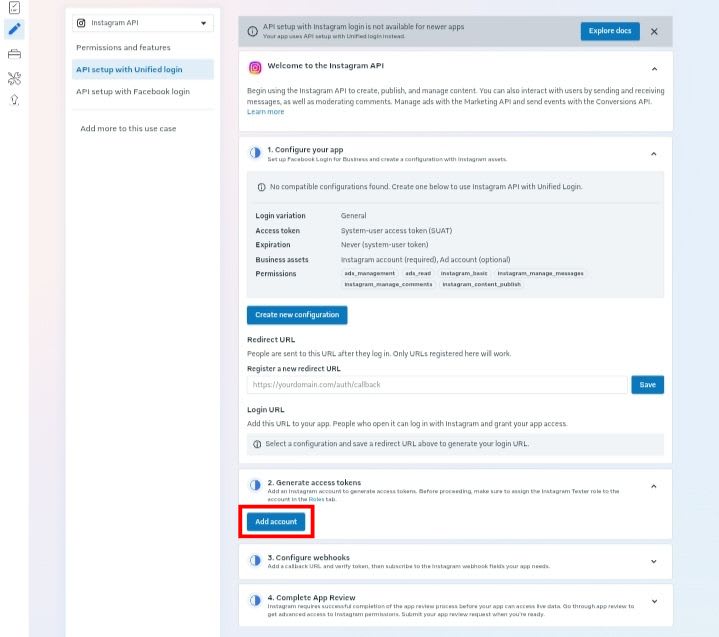
- In the Add people to your app dialog, select Instagram Tester under Additional roles for this app, search for your username, select your account and click Add.
- On instagram.com, go to Settings → Website permissions → Apps and websites → Tester Invites and accept the invitation. The Instagram mobile app doesn't show it, so use a browser.
- Refresh the dashboard. Your account now appears in the table. Click Generate token next to it.
- On the Log in to Business Tools from Meta page, choose Continue with Facebook or Continue with Instagram.
- On Select the business assets to share, choose your business portfolio and Instagram account. The ad account is optional. The dropdown defaults to Create a new ad account, so look for a way to skip it.
- Click Next and complete the prompts until the token appears. Copy it right away. Meta shows it only once, so if you lose it, generate a new one.
About your token
The dashboard calls it a system-user access token (SUAT). Worth knowing:
- It belongs to your business portfolio, not the person who logged in, so it keeps working if that person leaves.
- Expiry depends on your configuration. The default says "Token will never expire," and the preview shows the setting.
- It stops working if you remove the app from the portfolio or move the Instagram account to another portfolio. Connect again if that happens.
- Keep it on your server, never in client-side code, logs or URLs.
If the token generator fails
If the dashboard method fails, for example with a blank page, you can get your token another way: "Meta token generator shows a blank page? Get your Instagram or Threads token another way (the helper-workflow route)".
Troubleshooting
| Problem | Cause | Fix |
|---|---|---|
| No API setup with Unified login tab | Your app isn't owned by a business portfolio. | Connect a business portfolio (Step 2). |
| A blank page after you click Add Instagram account. Reloading it shows "Invalid code. The provided code is invalid for Instagram OpenID Connect" | Unknown. We hit it in our own testing. | Use the workaround above: get your token with the helper-workflow route. |
| Empty Instagram account list and an Instagram Pro account required message | Your Instagram account isn't in the business portfolio. | Add it in Step 2, then click Generate token again. |
| Your account isn't in the token table | The tester invite hasn't been accepted. | Accept it on instagram.com (Step 4), then refresh the dashboard. |
What's next?
You now have an access token for your own Instagram account. Next, learn "how to automate posting on Instagram".


Comments